


When we redesigned the booking flow for a boutique hotel chain last year, the biggest improvement in user completion rates did not come from restructuring the layout or rewriting the copy. It came from a small animated checkmark that appeared after each step was completed. That one detail — a micro-interaction lasting barely 300 milliseconds — reduced form abandonment noticeably. It was a good reminder that small design decisions often have outsized effects.
What micro-interactions actually are
Micro-interactions are contained moments within a product that revolve around a single task. A button that subtly changes color when hovered. A toggle switch that slides with a satisfying ease. A pull-to-refresh gesture that triggers a brief animation. Each of these is a micro-interaction - a small, focused exchange between the user and the interface.

Dan Saffer, who wrote the definitive book on the subject, breaks them into four parts: a trigger, rules, feedback, and loops or modes. The trigger initiates it (a click, a scroll, a system event). The rules determine what happens. The feedback communicates the result. And loops define whether the interaction repeats or changes over time. Understanding this structure helps designers create micro-interactions that feel purposeful rather than decorative.
Why they matter more than they look
Users rarely notice good micro-interactions, and that is precisely the point. They operate at a subconscious level, providing confirmation, guidance, and delight without demanding attention. When you submit a form and see a brief spinner followed by a success indicator, you feel confident the action completed. Remove that feedback, and users start double-clicking submit buttons, refreshing pages, and losing trust.
We once built an internal tool for a logistics company where warehouse staff scanned packages on handheld devices. The original interface gave no feedback on successful scans — the item just appeared in a list. Staff were rescanning constantly because they could not tell if the first scan had registered. Adding a subtle green flash and a soft haptic pulse cut redundant scans dramatically. The workflow got faster and the error rate dropped. A two-hour design change.
Making products sticky
Micro-interactions contribute to what product designers call stickiness — the quality that keeps users returning. The satisfaction of archiving email with a swipe, or the gentle bounce at the end of a scrollable list. These moments create a tactile, responsive feel that makes an interface worth coming back to.
At Kosmoweb, we find sticky interaction opportunities by mapping the user journey and flagging every moment of uncertainty or transition. Those moments are candidates for micro-interactions that clarify, reward progress, or smooth the shift between states. A progress bar during file uploads. A skeleton screen while content loads. A tooltip when a user pauses over an unfamiliar icon. These are not decoration — they are functional elements that reduce friction.
Designing micro-interactions in Figma
Figma's prototyping capabilities have matured to the point where we can design and demonstrate most micro-interactions without writing a line of code. Smart Animate, component variants, and interactive components let us build realistic prototypes that communicate motion and timing to developers with precision.
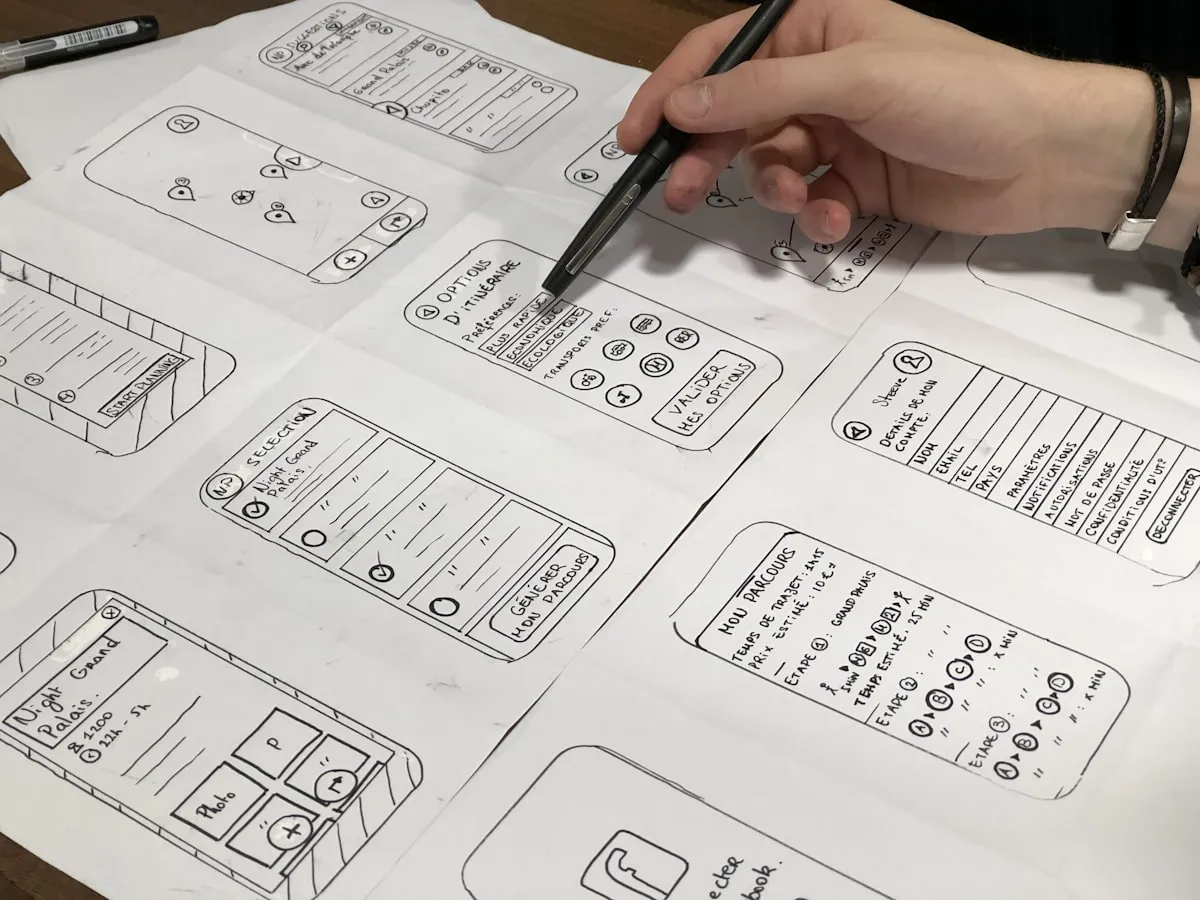
We start by defining states. For a button: default, hover, pressed, loading, success, error. Each state becomes a component variant, wired together through Figma’s interaction panel. The prototype becomes a living specification — developers can inspect easing curves, durations, and state transitions directly rather than guessing from a static handoff.
For complex animations, we export specific interactions as Lottie files or write annotated specs with exact timing values, cubic-bezier parameters, and trigger conditions. The goal is to eliminate interpretation so what gets built matches what was designed.
Knowing when to stop
There is a clear line between an interface that feels responsive and one that feels restless. Every animation takes a fraction of the user’s attention. Stack too many and the interface becomes noisy. Our rule: if a micro-interaction does not serve a clear functional purpose — confirming an action, providing feedback, directing attention — it should not exist.
Performance matters too. Animations that trigger layout recalculations or run on the main thread cause jank, especially on lower-end devices. We limit ourselves to CSS transforms and opacity changes where possible, and we test on mid-range Android phones, not just flagships. A beautiful animation that stutters on a 200-euro phone is a worse experience than no animation at all.
Where to start in an existing product
If you are looking to introduce micro-interactions into an existing product, start with the highest-friction moments. Identify where users hesitate, where error rates spike, or where support tickets cluster. Those are the spots where well-placed feedback will have the greatest impact.

Build a small library of reusable interaction patterns — loading states, success confirmations, error indicators, hover effects — and apply them consistently. Consistency matters because it teaches users to recognize patterns. When every successful action is confirmed the same way, users develop real confidence in the interface rather than having to re-learn each interaction.
At Kosmoweb, we maintain an internal interaction pattern library that grows with each project. It saves setup time, keeps things consistent across teams, and gives designers a shared vocabulary when discussing motion. The cost of cataloging these patterns is small compared to the time it saves on every subsequent project.